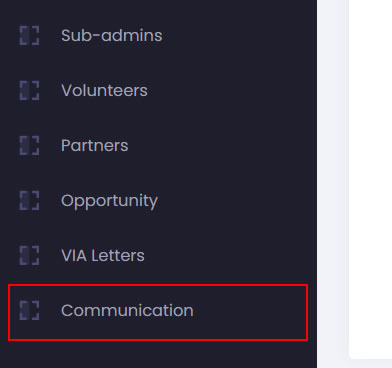
- To send scheduled email to registered volunteers through Givlly. Go to the admin dashboard, and click on the Communication Module.
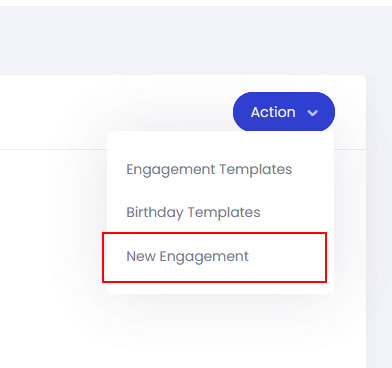
- The Communication Insights dashboard, click on the Action button and select New Engagement.
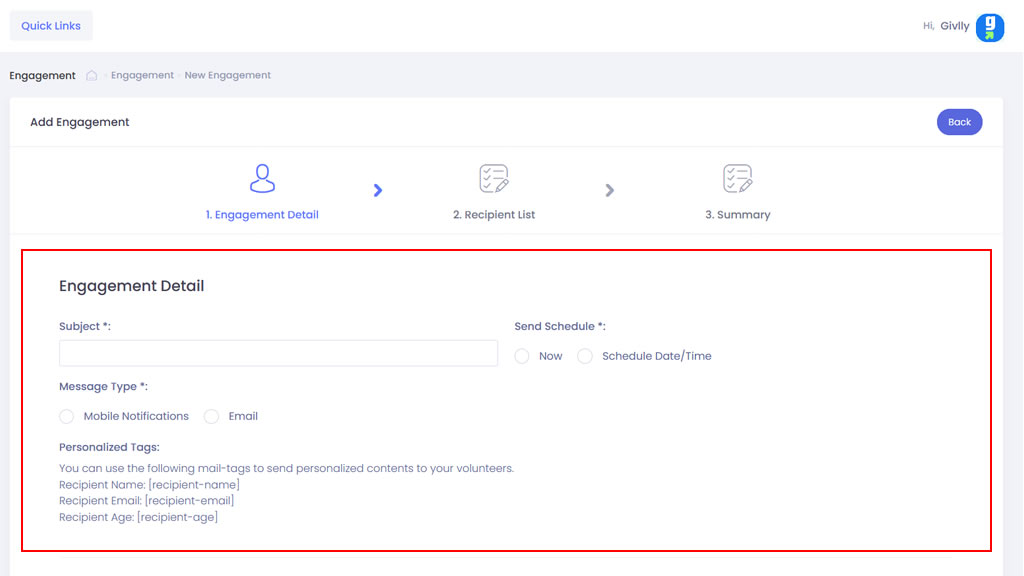
- First, enter the subject of your email. Next, select when you want to send the email.
If you decided to send the email at later date and time, under Send Schedule, select the Scheduled date/ time.
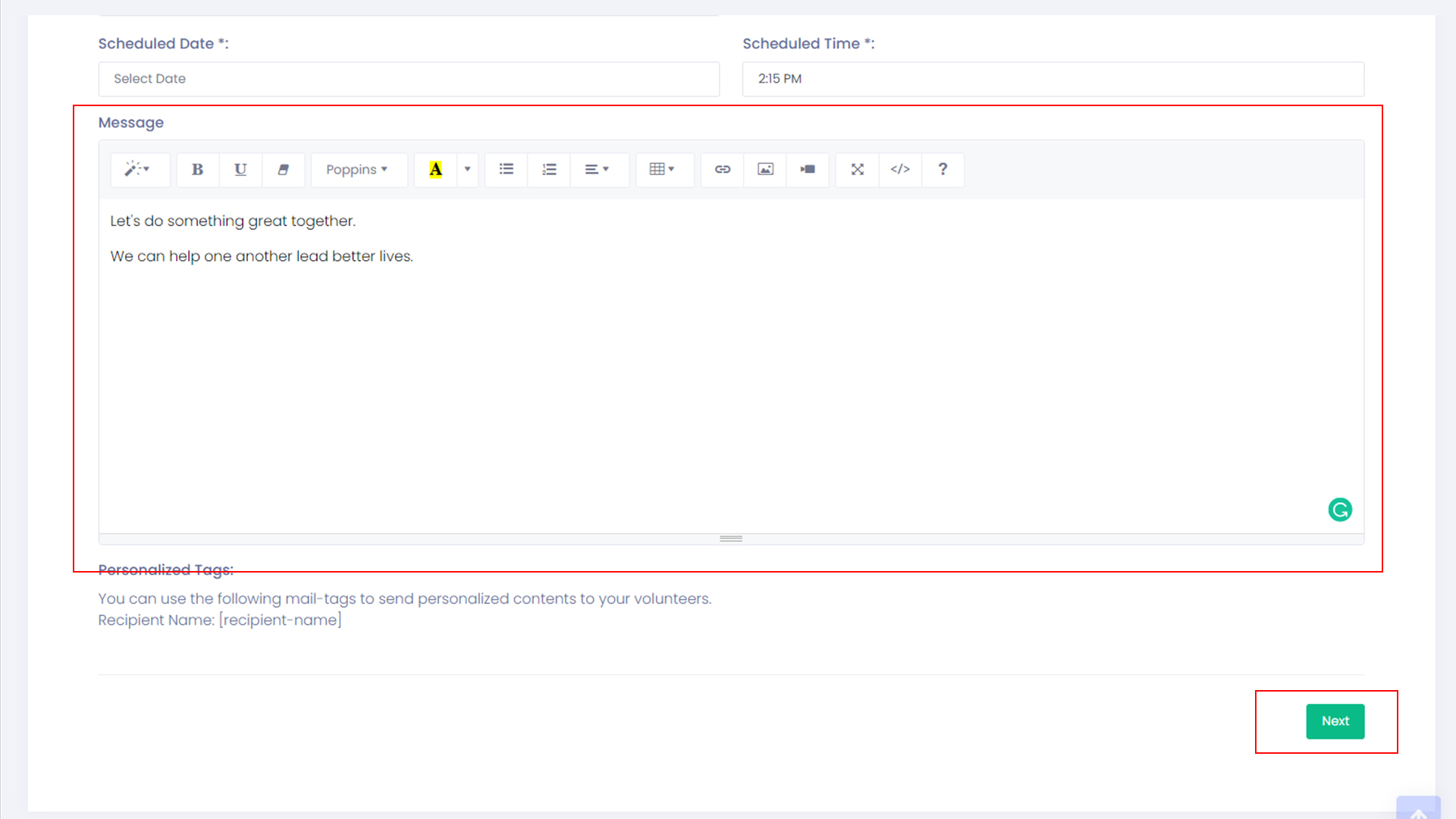
- Craft your email content in the message field and click the Next button to continue.
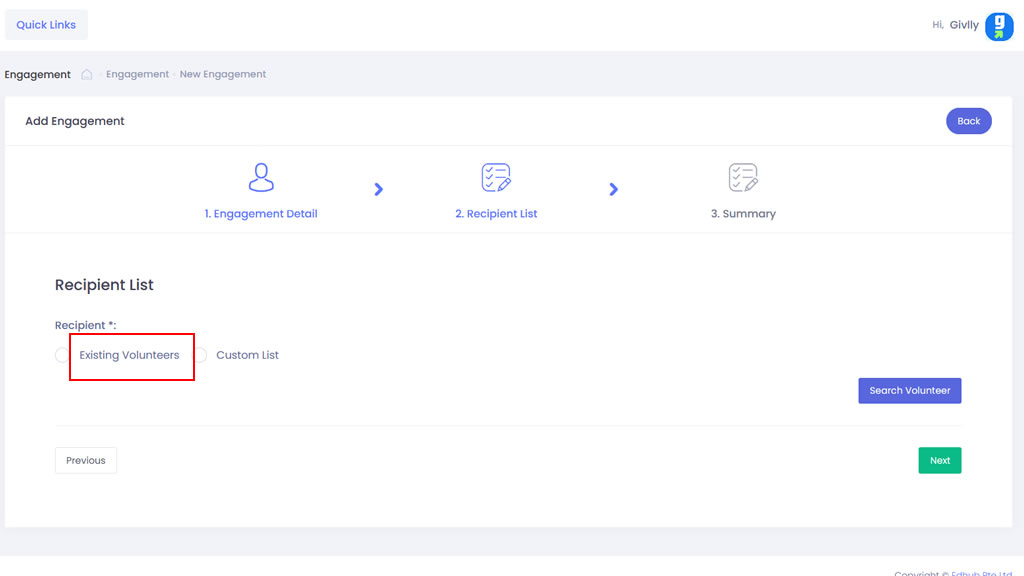
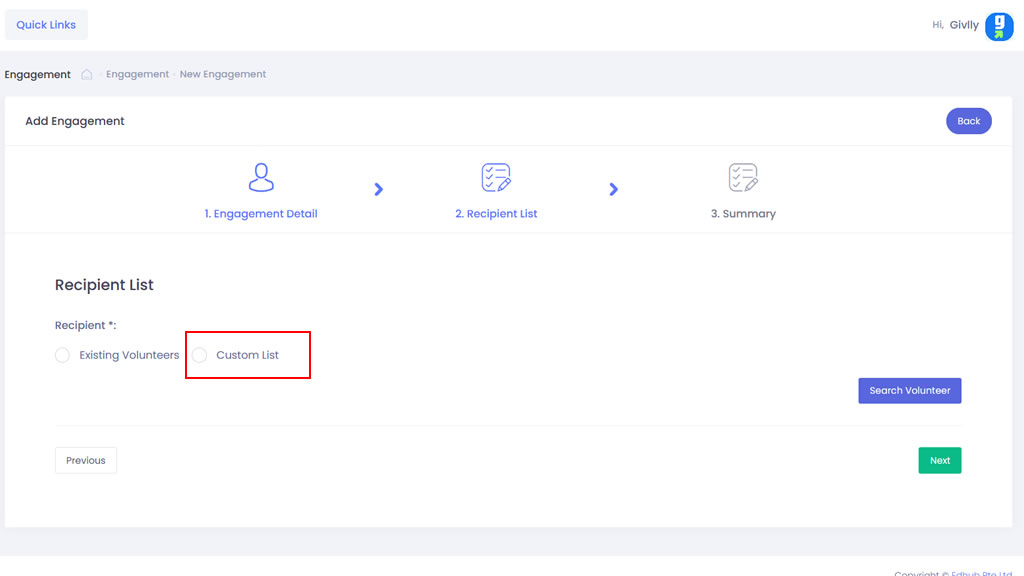
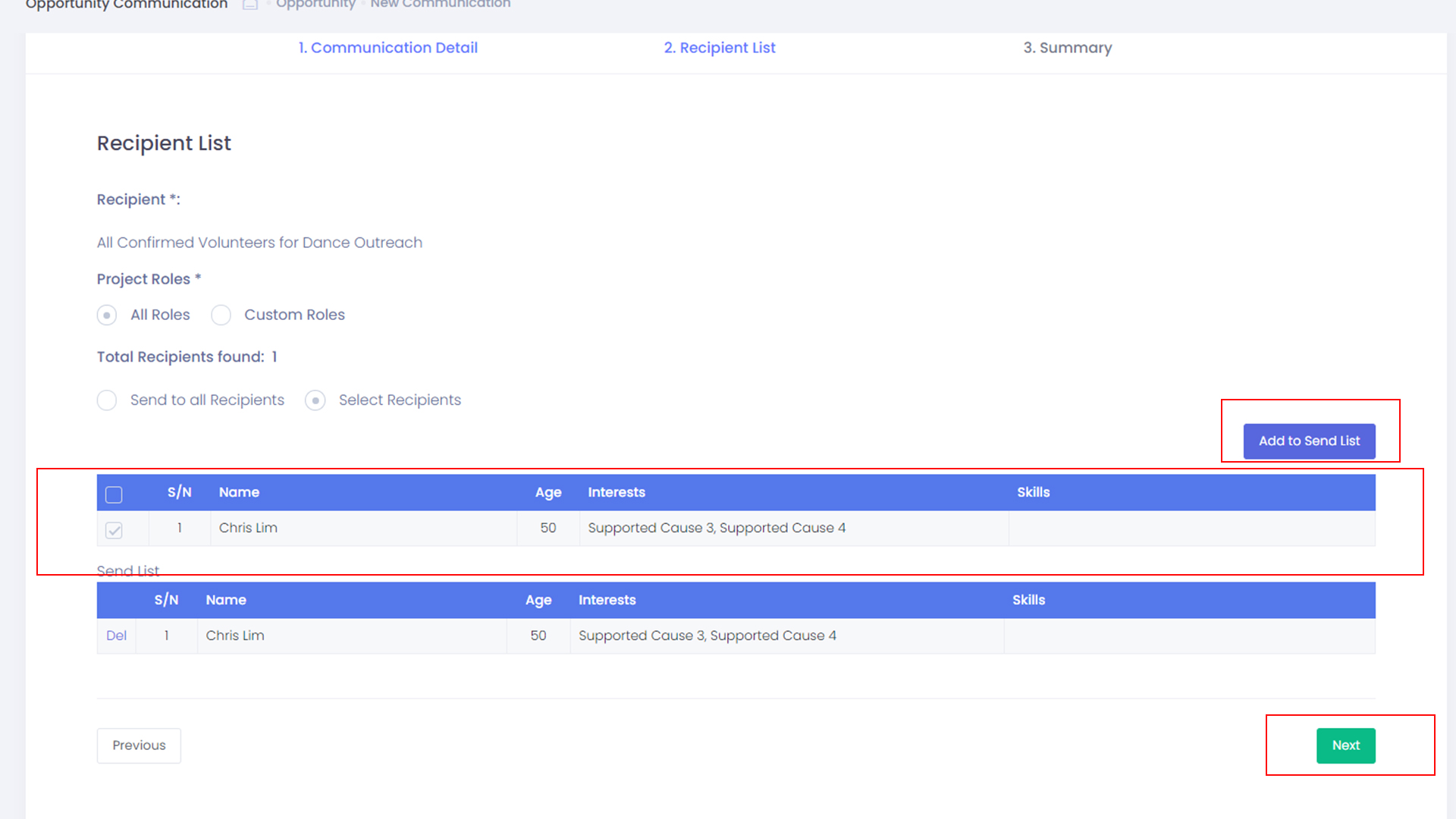
- Under Step 2, select the required recipients, All or Custom volunteers. If you decided to choose All, and you can either send the email to all recipients or manually select the recipients by choosing Select Recipients.
- If you decided to choose Custom Role, next select the required parameter(s) and click Search Volunteer button to display the list of volunteers that fit the selected parameter(s).
- Select the required volunteers from the list and Add to Send List button.
Click the Next button continue
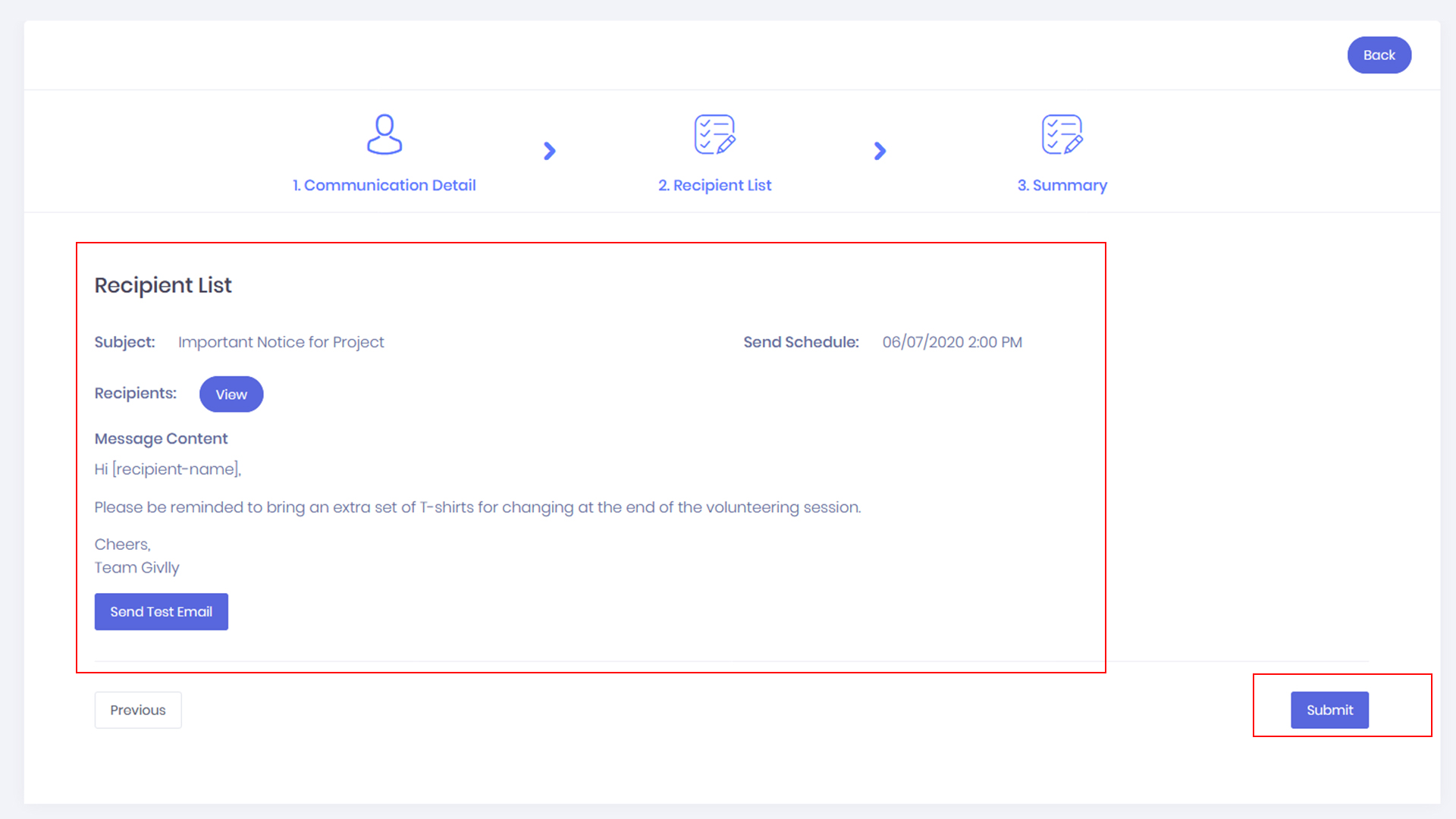
- Review the email settings and click the Submit button to send the email.